

Inbound & IVR
Inbound call handling in Dialer.CX covers everything from the phone number a customer dials to the agent who answers. This section walks through DID management, queue configuration, IVR menu building, and audio prompt creation.
DID Numbers (Inbound Numbers)
Section titled “DID Numbers (Inbound Numbers)”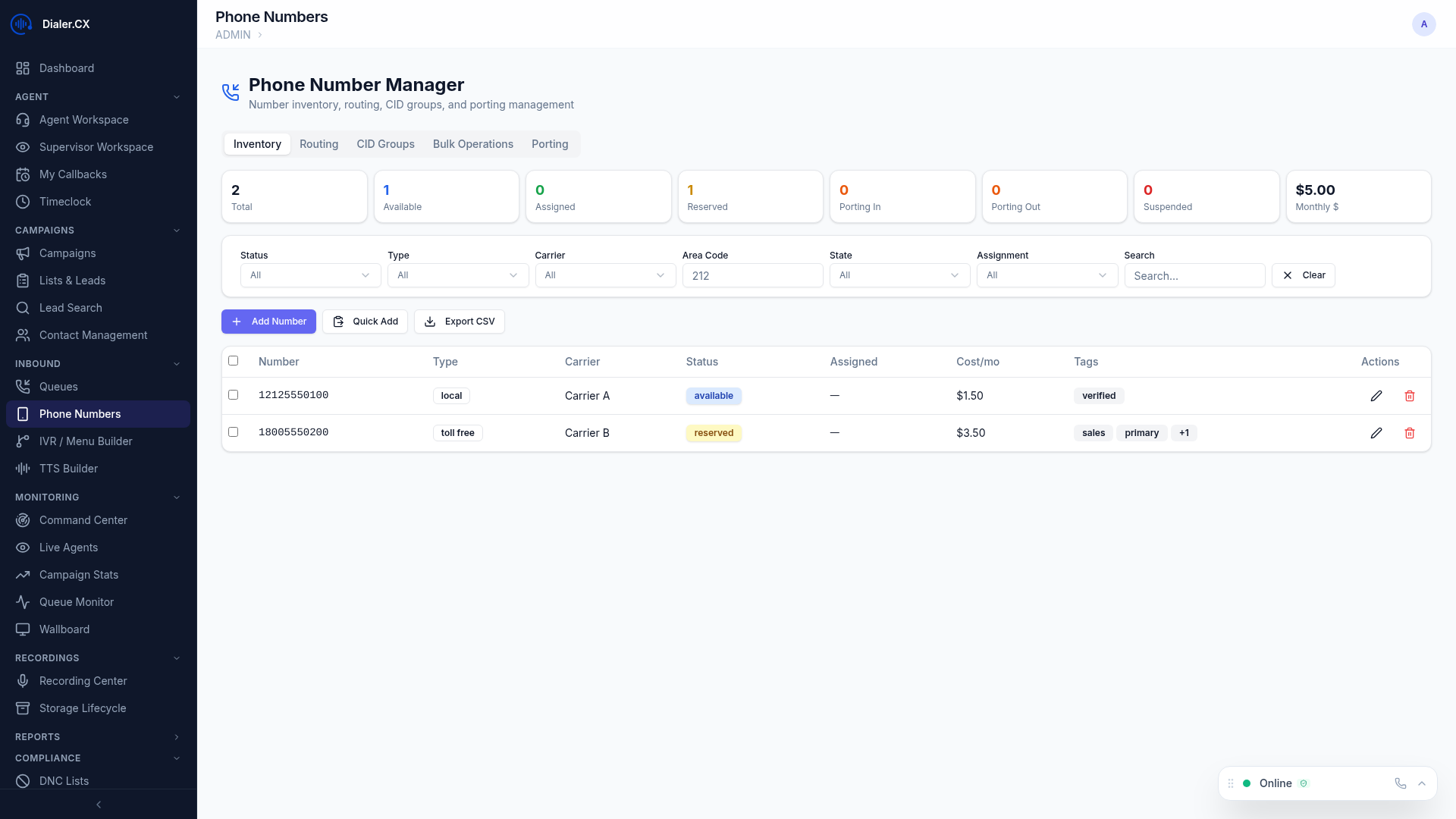
Manage your inbound phone numbers at Admin > DIDs. Each DID defines how an incoming call is routed when it arrives.
DID Configuration
Section titled “DID Configuration”- Route type — where incoming calls go: queue, agent, voicemail, IVR menu, or external number
- Time-based routing — different destinations for business hours vs. after hours (e.g., IVR during the day, voicemail at night)
- Caller ID routing — route based on the caller’s number or area code
- Overflow handling — what happens when the primary destination is full or unavailable
DID Inventory
Section titled “DID Inventory”Track your number portfolio across all providers:
- Provider and cost per number for budget tracking
- Renewal dates so numbers are not accidentally lost
- Geographic assignment — area code and region mapping
- Usage statistics — call volume and answer rates per number
Inbound Queues
Section titled “Inbound Queues”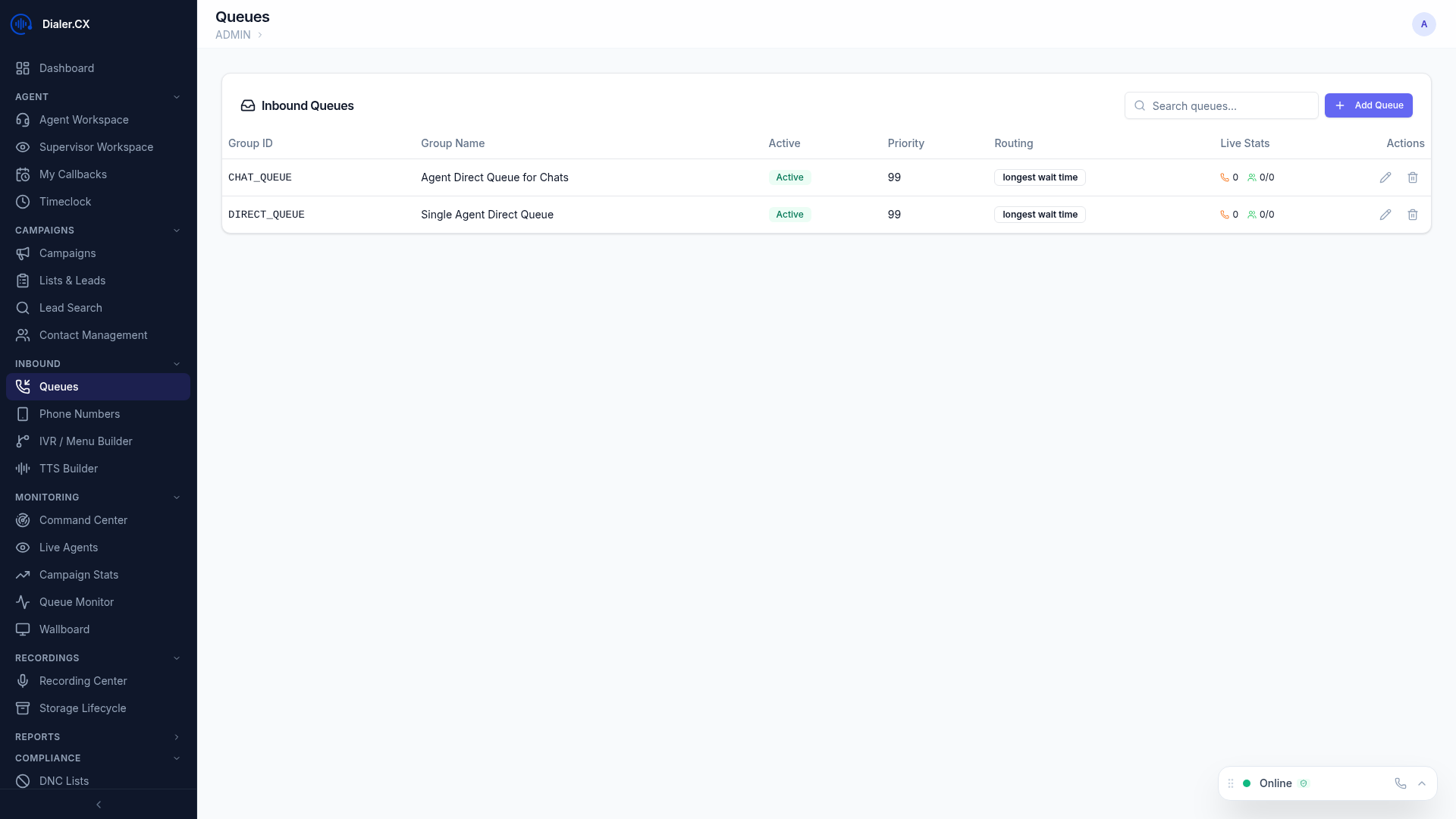
Configure call queues at Admin > Inbound Queues. Queues hold incoming callers until an agent becomes available.
| Setting | Description |
|---|---|
| Queue Name | Human-readable identifier shown in monitoring and reports |
| Ring Strategy | Longest idle, round-robin, random, or ring all |
| Max Wait Time | How long callers wait before overflow action triggers |
| Overflow Destination | Where calls go when max wait is exceeded (voicemail, another queue, IVR) |
| Hold Music | Which music-on-hold playlist callers hear while waiting |
| Announcements | Position-in-queue and estimated wait time messages |
| Agent Priority | Which agents are preferred for this queue and in what order |
IVR / Call Menus
Section titled “IVR / Call Menus”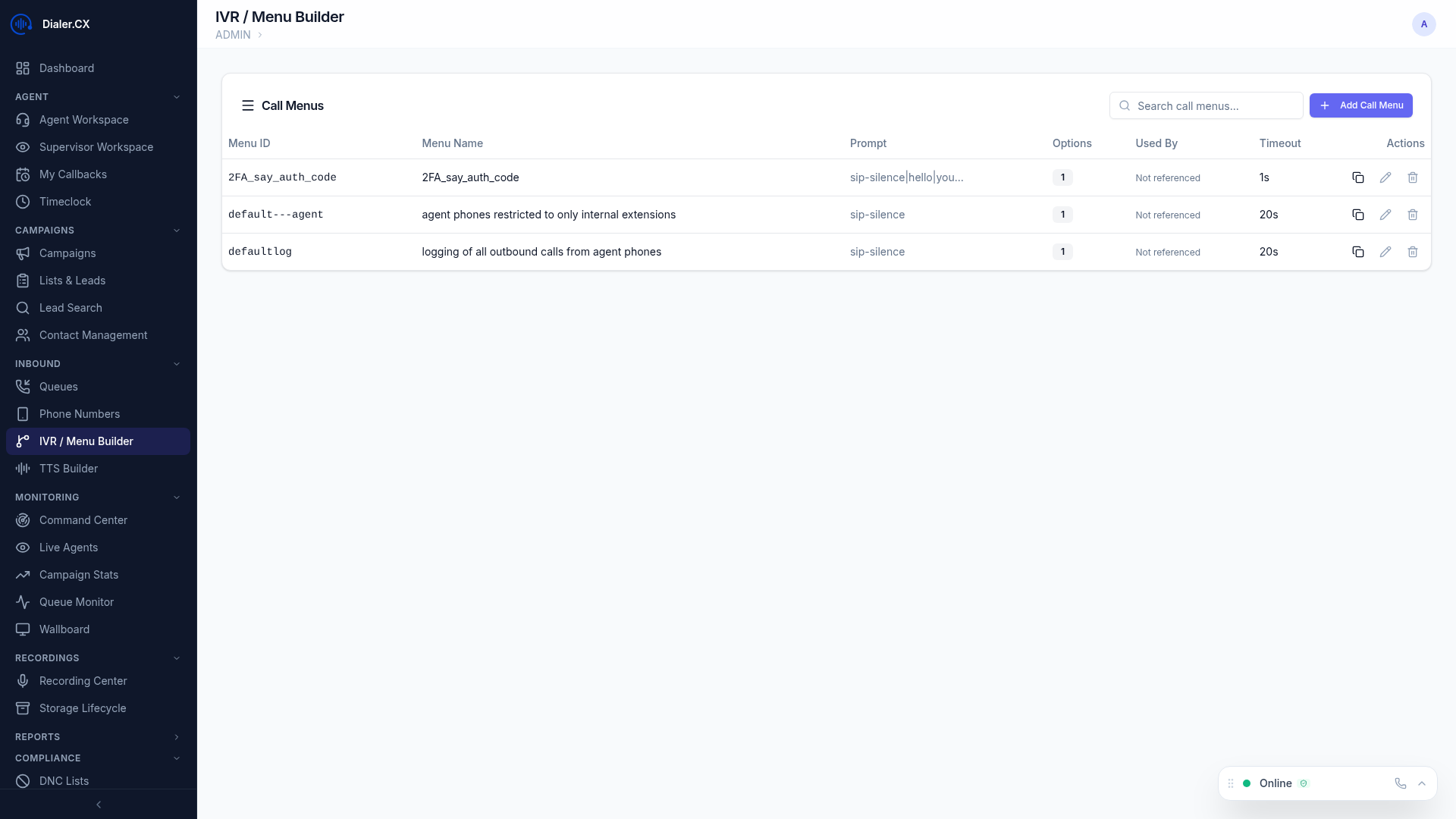
Build interactive voice response menus at Admin > Call Menus. IVR menus greet callers and route them based on key presses.
- Menu prompts — the audio file played to callers (“Press 1 for Sales, Press 2 for Support…”)
- DTMF options — map key presses (1—9, 0, *, #) to specific destinations
- Destinations per key: queue, agent, extension, voicemail, another IVR menu, or hang up
- Timeout handling — action if no key is pressed within the timeout period
- Invalid input — retry the prompt or redirect on wrong key press
IVR Prompt Builder
Section titled “IVR Prompt Builder”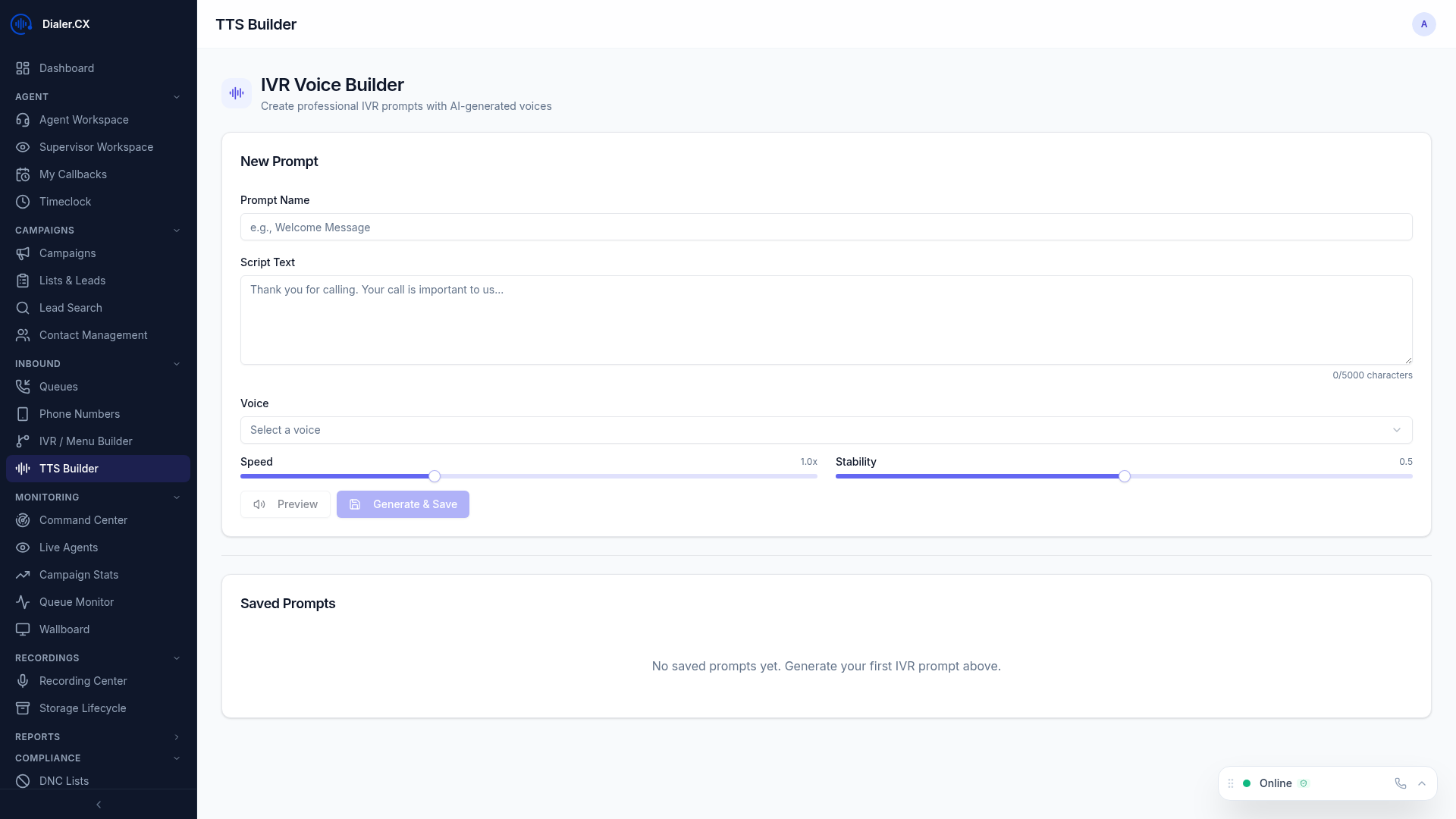
Create professional audio prompts without recording studio equipment using AI text-to-speech:
- Navigate to IVR Builder from the sidebar
- Type your prompt text — write exactly what callers should hear
- Select a voice and language from the available TTS voices
- Click Generate — the AI engine creates the audio file in seconds
- Preview the result directly in your browser
- Save to your prompt library for use in IVR menus, queues, and announcements
Voice Files
Section titled “Voice Files”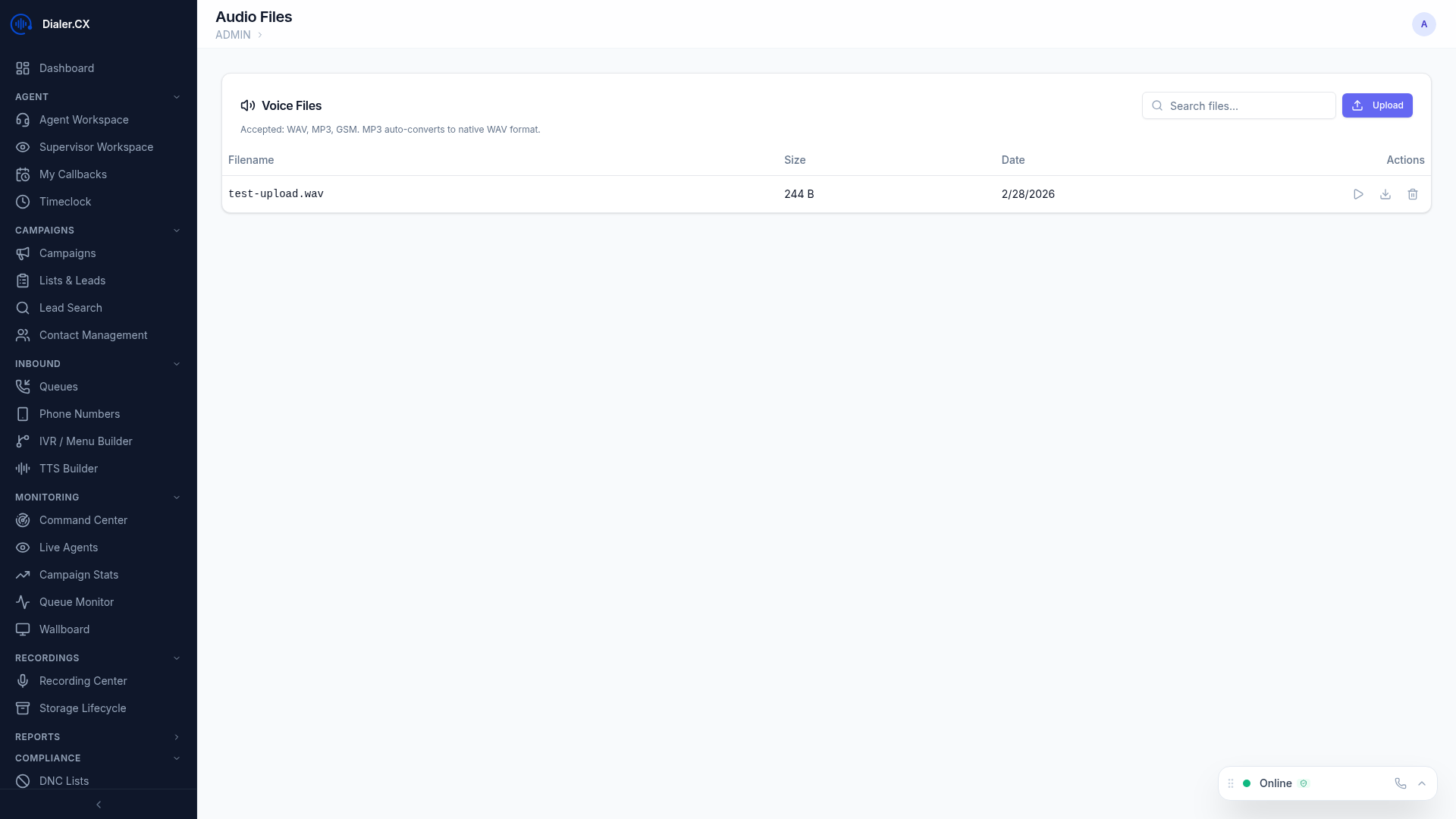
Manage all audio files at Admin > Voice Files. This is the central library for every audio asset used across the platform.
- Upload pre-recorded audio — WAV or MP3 format
- Generate new files via the built-in text-to-speech engine
- Organize by category — IVR prompts, hold music, announcements, voicemail greetings
- Preview playback — listen to any file directly from the management page
Music on Hold
Section titled “Music on Hold”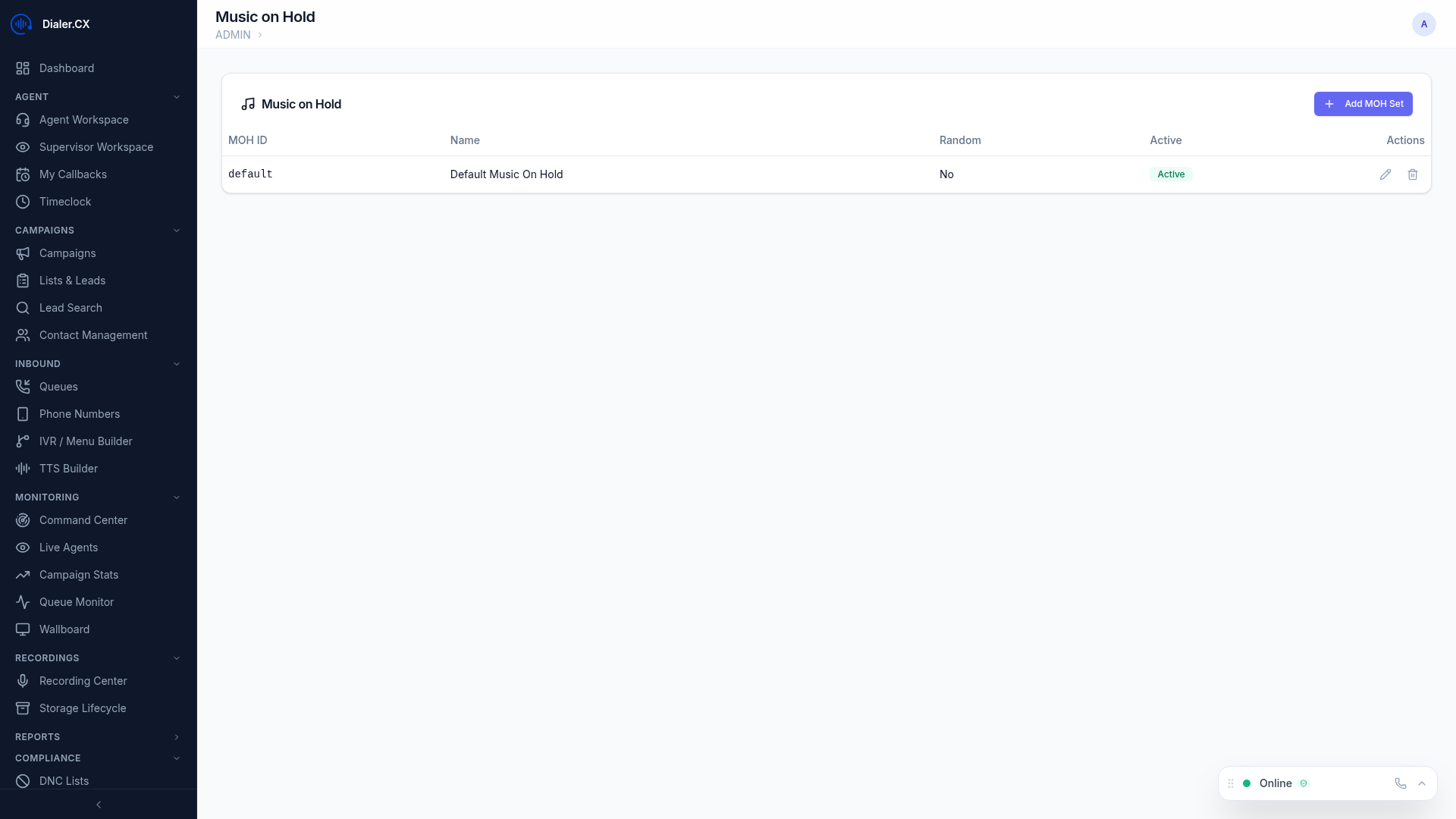
Configure hold music at Admin > Music on Hold. Hold music plays for callers waiting in queues and during transfers.
- Create playlists with multiple audio files for variety
- Upload custom music — use your own licensed audio tracks
- Assign playlists to specific queues and campaigns
- Random or sequential playback order