

Scheduled Jobs
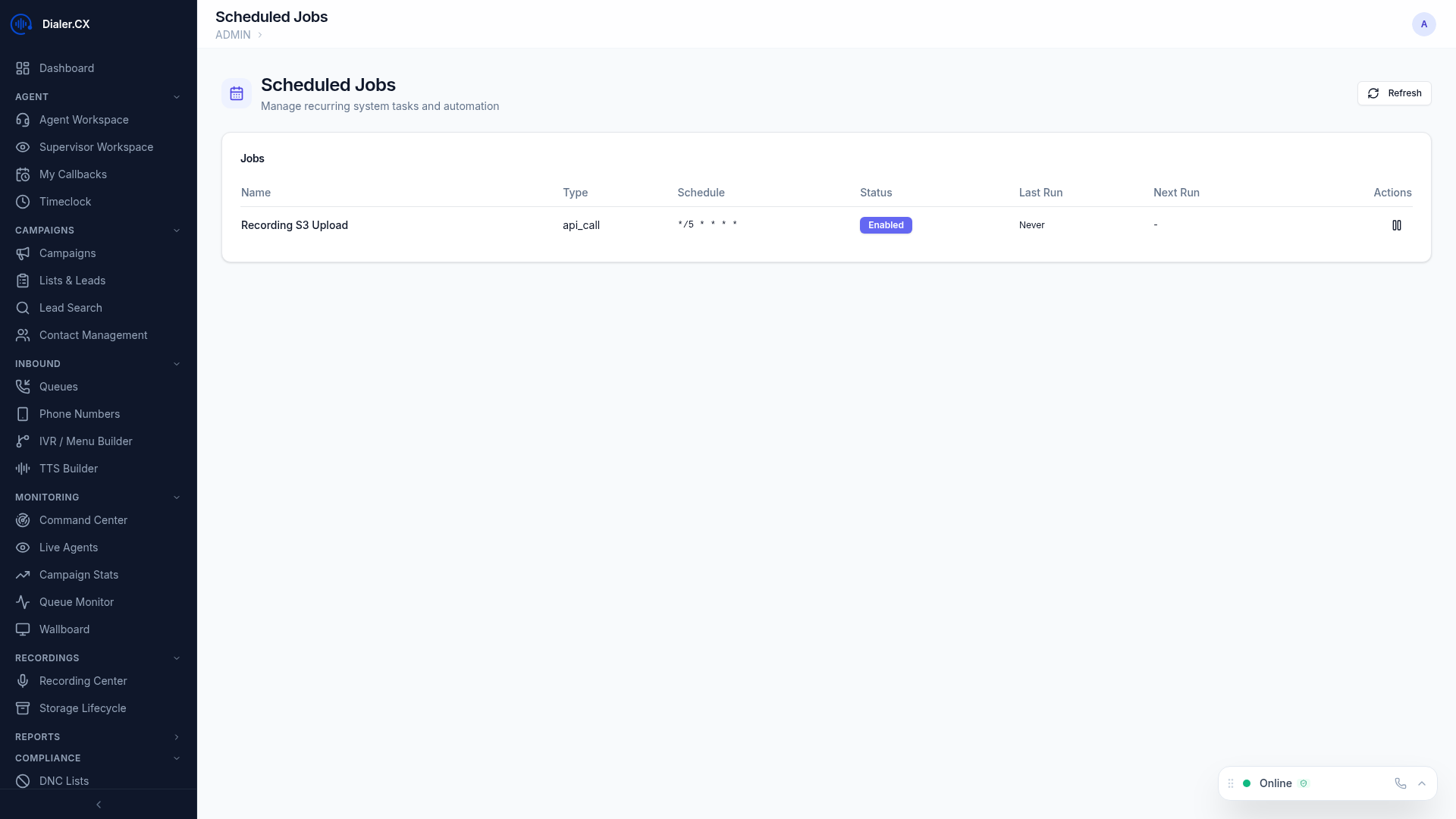
Dialer.CX runs several automated background jobs to handle tasks like recording uploads, report generation, alert evaluation, and session cleanup. The Scheduled Jobs page gives administrators visibility into what is running, when it last executed, and whether it succeeded.
Viewing Jobs
Section titled “Viewing Jobs”Navigate to Admin > Scheduled Jobs to see all configured jobs and their current state:
| Column | Description |
|---|---|
| Job Name | Human-readable description of the task |
| Schedule | How often it runs (e.g., every 5 minutes, hourly, daily at midnight) |
| Last Run | Timestamp of the most recent execution |
| Status | Whether the job is currently enabled or disabled |
| Last Result | Success confirmation or error details from the last run |
System Jobs
Section titled “System Jobs”These are the core background jobs that ship with Dialer.CX:
| Job | Schedule | Purpose |
|---|---|---|
| Recording Upload | Every 5 minutes | Converts completed recordings and uploads them to cloud storage (S3) |
| Scheduled Reports | Per report config | Generates configured reports and delivers them via email on schedule |
| Alert Evaluation | Every minute | Checks all active alert rules against current real-time metrics |
| Session Cleanup | Hourly | Removes expired user sessions from the database |
Managing Jobs
Section titled “Managing Jobs”- Enable/Disable — toggle any job on or off without deleting its configuration
- Edit Schedule — change how often a job runs using cron-style scheduling
- View History — see past executions with timestamps, duration, and success/failure details
- Manual Trigger — run a job immediately for testing or to process a backlog