

User Management
User Management is the central hub for creating accounts, assigning roles, and organizing your team into groups. Every person who logs into Dialer.CX — from front-line agents to system administrators — is managed here.
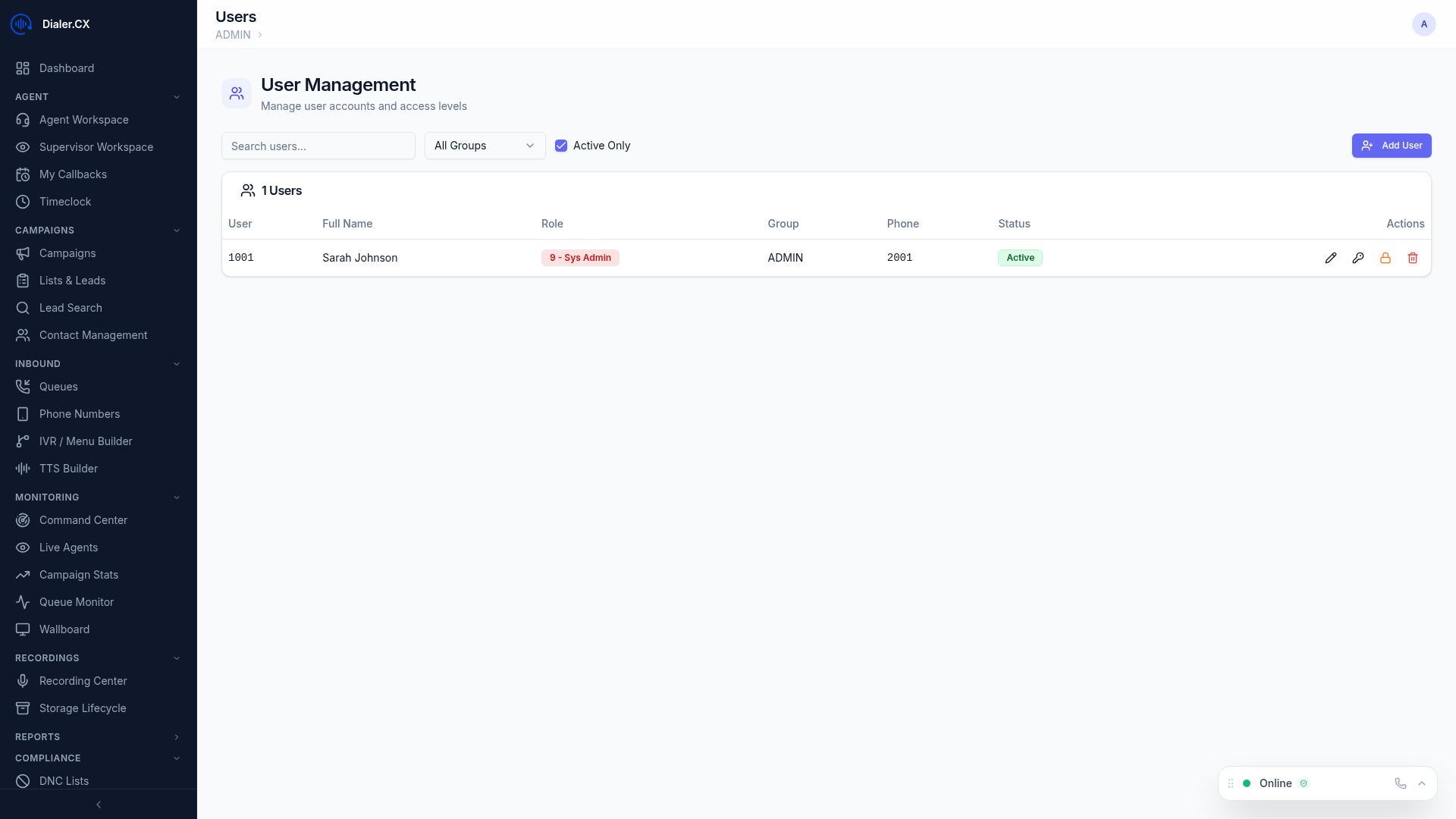
Creating Users
Section titled “Creating Users”Navigate to Admin > Users and click New User to open the creation form.
User Fields
Section titled “User Fields”| Field | Description |
|---|---|
| Username | Login identifier — must be unique across the system |
| Full Name | Display name shown in the sidebar, reports, and monitoring views |
| Password | Account password — subject to your configured password policy |
| Role | Agent, Supervisor, Manager, or Admin (see role levels below) |
| User Group | Team or department assignment for reporting and campaign access |
| Phone Mode | Browser softphone (WebRTC) or desk phone (SIP hardware) |
Role Levels
Section titled “Role Levels”Dialer.CX uses a tiered role system that controls which pages, features, and API endpoints each user can access. Roles are enforced at both the sidebar navigation level and the API authorization layer.
| Role | User Level | Access |
|---|---|---|
| Agent | 1—4 | Dashboard, Agent Workspace, Callbacks |
| Supervisor | 5—6 | + Monitoring, Recordings, Reports, Wallboard |
| Manager | 7—8 | + Campaigns, Lists, Contacts, Inbound, Operations |
| Admin | 9 | Full access to all features and settings |
Role Presets
Section titled “Role Presets”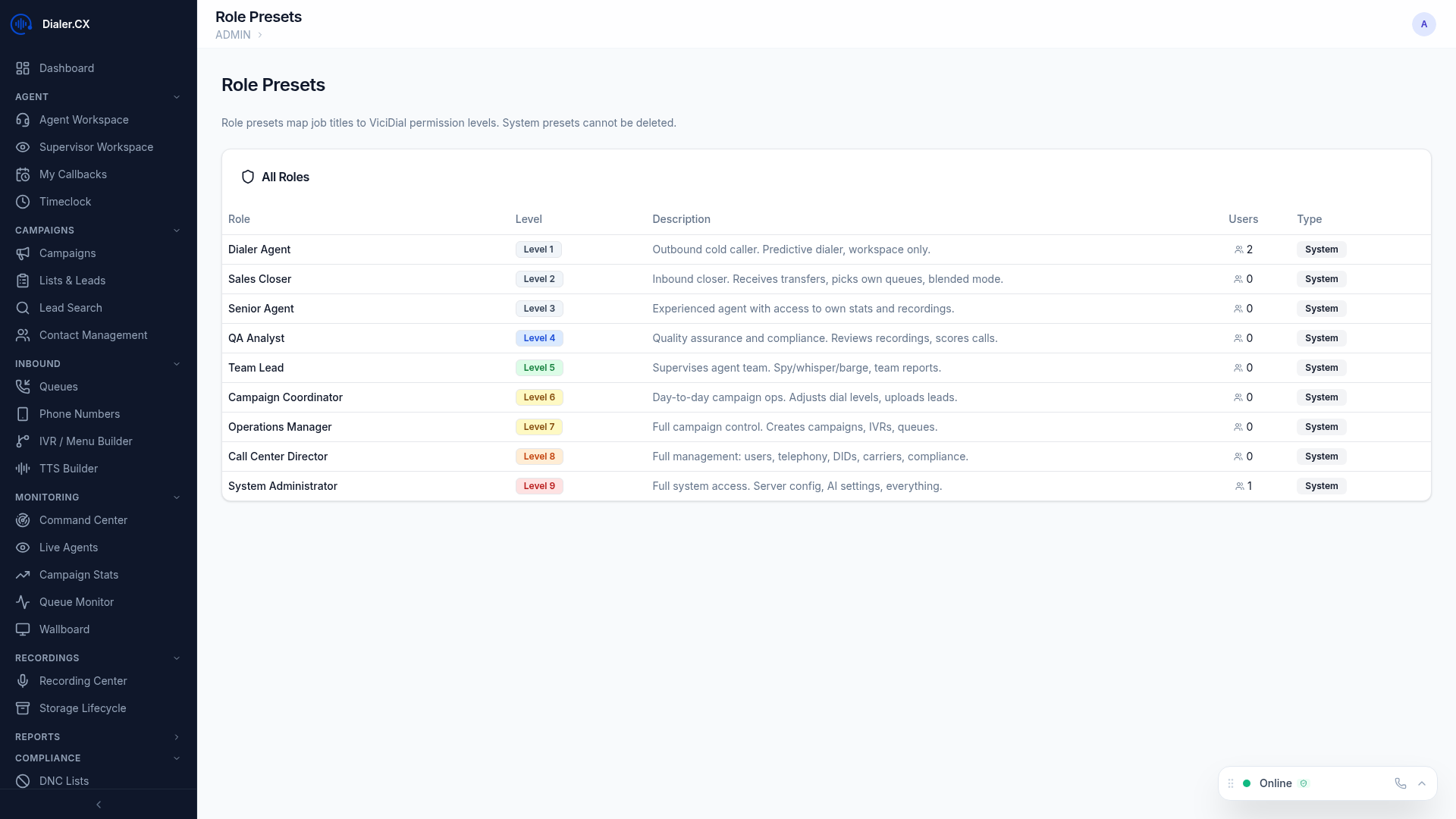
Save and reuse role configurations to streamline onboarding:
- Pre-built presets for each standard role (Agent, Supervisor, Manager, Admin)
- Custom presets for specialized positions — e.g., a “QA Reviewer” with access to recordings and quality control but not campaign settings
- One-click application during user creation or bulk provisioning
- Edit anytime — updating a preset does not retroactively change users already assigned that role
User Groups
Section titled “User Groups”Organize users into logical teams for campaign access control and reporting:
- Group-based campaign access — assign campaigns to groups so only relevant agents see them
- Group-level reporting — filter performance reports by team
- Manager assignment — designate a group manager who can view their team’s metrics
- Multi-group membership — users can belong to more than one group when needed
Bulk Provisioning
Section titled “Bulk Provisioning”Create multiple user accounts at once when onboarding a new team or scaling up:
- Upload a CSV with user details (username, full name, email, role) or use the interactive bulk form
- Select a role preset to apply uniformly across all new accounts
- System auto-generates credentials — secure random passwords for each user
- Onboarding emails are sent to each user with their login details and getting-started instructions
Per-User Preferences
Section titled “Per-User Preferences”Each user can configure personal settings from their profile:
- Language — UI language preference (affects labels, menus, and system messages)
- Theme — light or dark mode
- Timezone — local time zone for all date and time displays throughout the platform