

Making & Receiving Calls
How Calls Are Delivered
Section titled “How Calls Are Delivered”The way calls reach you depends on your campaign’s dial mode:
Auto-Dial (Predictive / Progressive)
Section titled “Auto-Dial (Predictive / Progressive)”- The system dials leads automatically
- When a call is answered, it’s connected to the next available agent
- You hear a tone and the lead’s information appears on screen
- No action needed — calls are delivered to you
Manual Mode
Section titled “Manual Mode”- You choose when to dial
- Enter a number or click a lead from your list
- Click Dial to initiate the call
- Full control over pacing
Inbound
Section titled “Inbound”- Calls from customers are routed to your queue
- When your queue receives a call, it’s delivered to you based on priority
- Inbound calls show the caller’s number and any matching lead data
During a Call
Section titled “During a Call”The Agent Workspace transforms when a call connects, showing call controls, lead data, and your script in a single view.
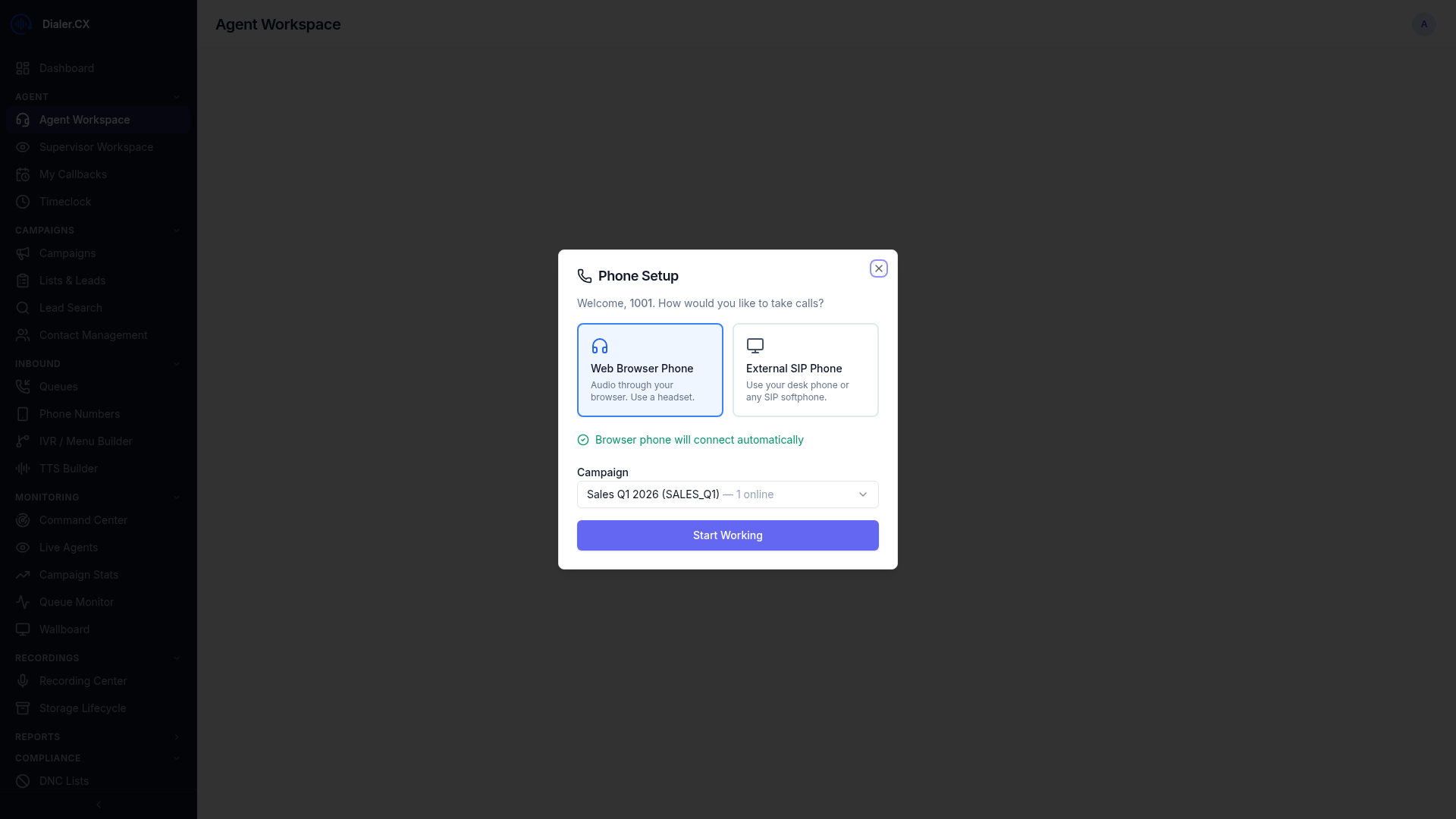
Call Controls Bar
Section titled “Call Controls Bar”| Button | Action | When to Use |
|---|---|---|
| Hang Up | End the call | When the conversation is complete |
| Hold | Put caller on hold with music | When you need to look something up |
| Mute | Silence your microphone | When you need to cough or speak to a colleague |
| Transfer | Send the call elsewhere | To route to a specialist or supervisor |
| Conference | Add a third party | For warm transfers or three-way calls |
| Keypad | Send DTMF tones | When navigating an external IVR |
Transfer Types
Section titled “Transfer Types”Blind Transfer
- Click Transfer
- Select the destination (agent, queue, or external number)
- The call is immediately transferred — you’re disconnected
Warm Transfer
- Click Conference to add the transfer target
- Introduce the caller to the receiving party
- Click Leave to drop yourself from the call
- The caller and receiving party continue
Call Timer
Section titled “Call Timer”A live timer shows the current call duration in your status bar and call panel.
After the Call
Section titled “After the Call”When the call ends (either party hangs up):
- Your status changes to DISPO
- Select a disposition code (see Dispositions & Callbacks)
- Optionally add call notes
- Your status returns to READY
The time between call end and disposition selection is tracked as dispo time.
Callbacks
Section titled “Callbacks”If a lead asks you to call back later, select a callback disposition to schedule a follow-up. Your upcoming callbacks are managed in the dedicated Callbacks page, where you can see all scheduled calls, lead details, and click to dial.
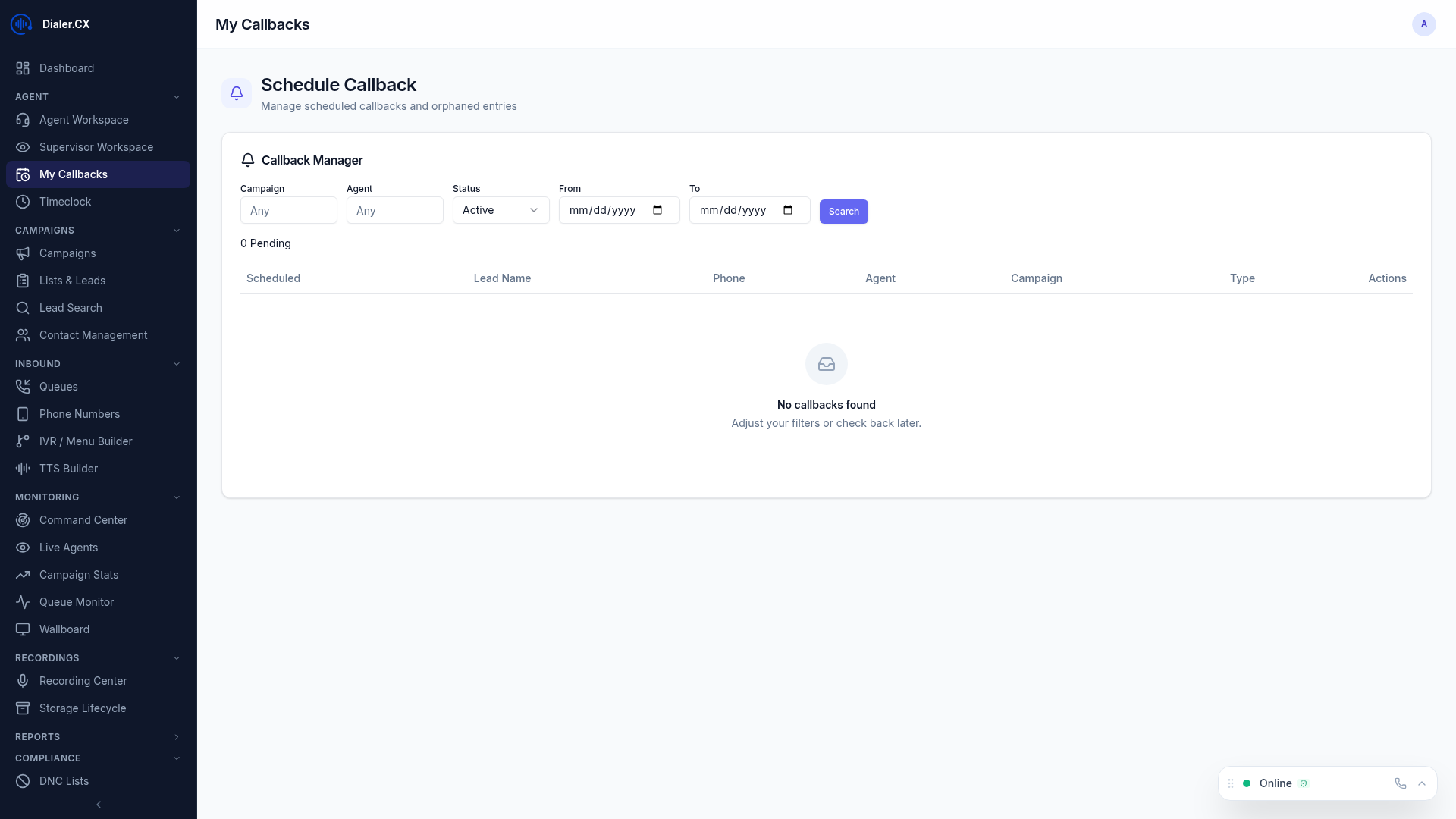
See Dispositions & Callbacks for full details on scheduling and managing callbacks.
Call History
Section titled “Call History”The phone widget’s History tab shows your recent calls:
- Direction — inbound or outbound icon
- Number — the phone number
- Duration — how long the call lasted
- Time — when the call occurred
- Status — answered, missed, or failed
Click any history entry to dial that number.