
Dispositions & Callbacks
What Are Dispositions?
Section titled “What Are Dispositions?”After every call, you must select a disposition code that describes the outcome. Dispositions drive reporting, lead recycling, and campaign performance metrics.
Selecting a Disposition
Section titled “Selecting a Disposition”- When a call ends, you automatically enter the DISPO state
- A panel displays available disposition codes for your campaign
- Click the appropriate code
- Your status returns to READY
Common Disposition Codes
Section titled “Common Disposition Codes”Your administrator configures which codes are available per campaign. Common examples:
| Code | Category | Meaning |
|---|---|---|
| SALE | Sale | Successful sale or conversion |
| NI | Contact | Not interested |
| CB | Callback | Wants a callback at a specific time |
| NA | Non-Contact | No answer |
| BUSY | Non-Contact | Line busy |
| DNC | DNC | Requested Do Not Call |
| XFER | Transfer | Transferred to another agent or queue |
| VM | Non-Contact | Reached voicemail |
| DISC | Non-Contact | Disconnected number |
Scheduling Callbacks
Section titled “Scheduling Callbacks”When you select a callback disposition (like CB or CALLBK):
- A date and time picker appears
- Select when you should call back
- Add optional notes about what to discuss
- The callback is saved and appears in your Callbacks list
Callback Types
Section titled “Callback Types”| Type | Who Handles It |
|---|---|
| Agent Callback | Only you will receive this callback at the scheduled time |
| Campaign Callback | Any available agent in the campaign can handle it |
Best Practices
Section titled “Best Practices”Viewing Your Callbacks
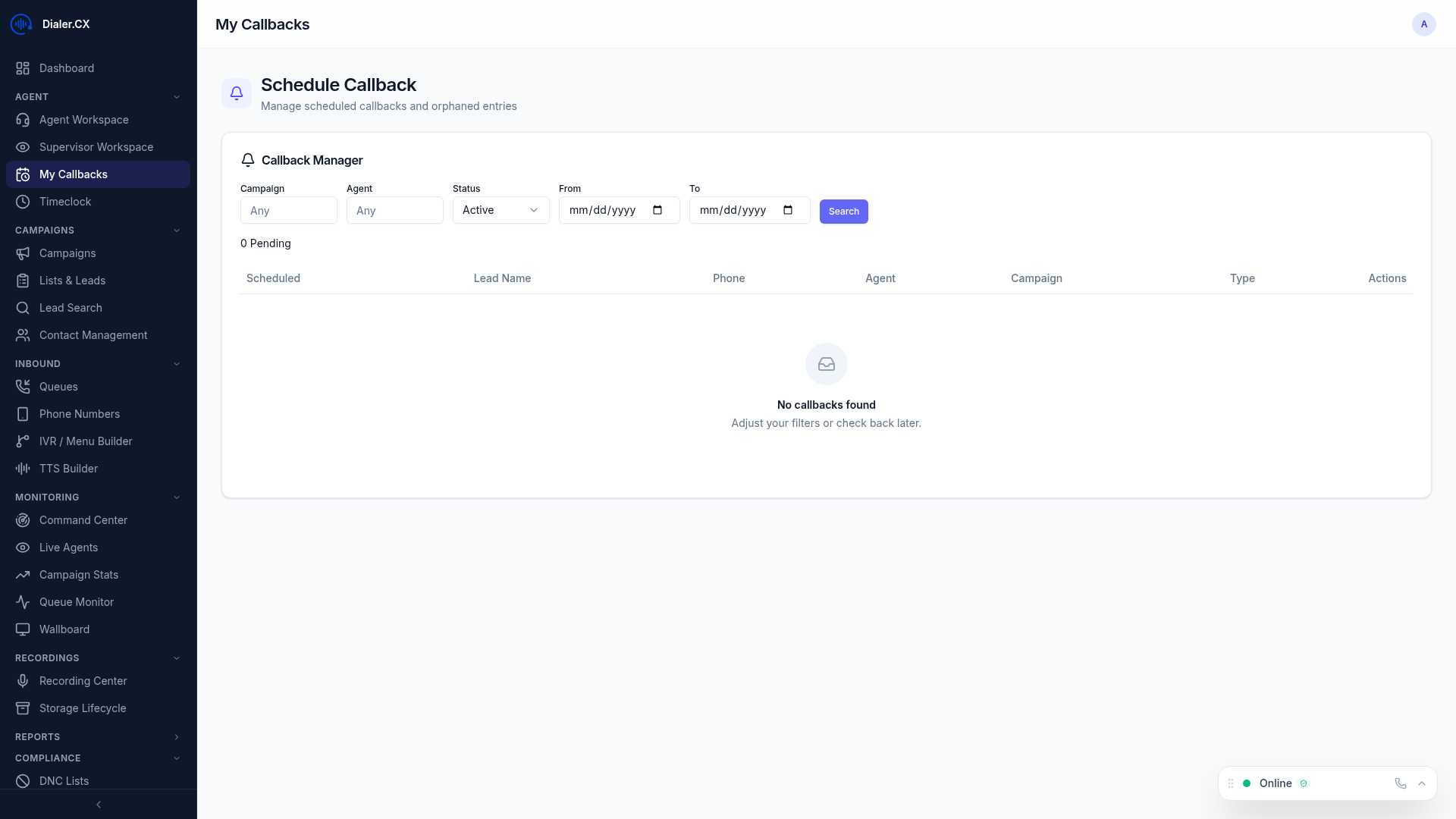
Section titled “Viewing Your Callbacks”Navigate to Callbacks in the sidebar to see:
- All your upcoming scheduled callbacks
- Lead details for each callback
- Click-to-call from the callback list
- Status tracking (pending, completed, missed)
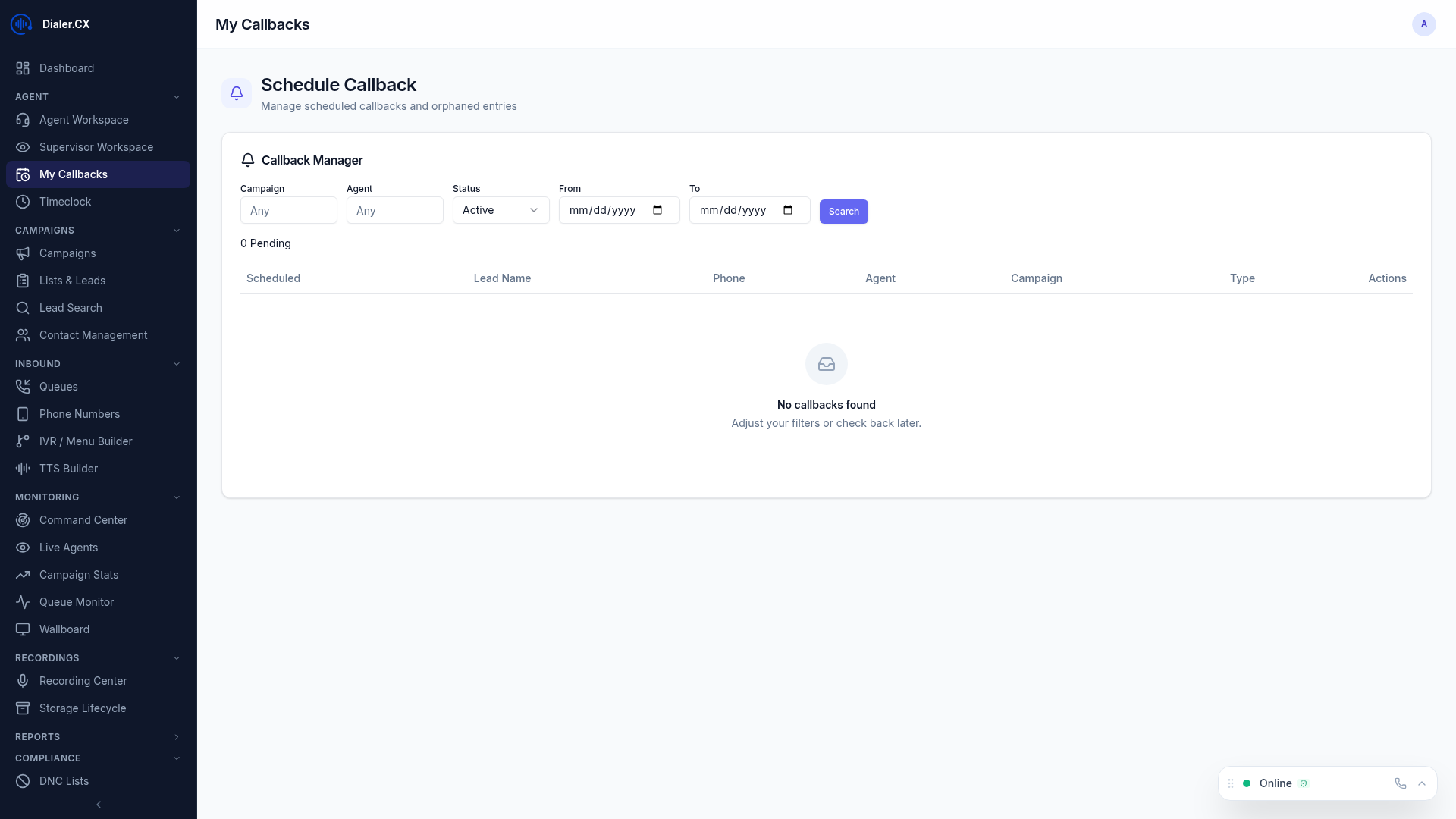
The full-page Callbacks view gives you a complete list of all pending and completed callbacks, with filtering options and one-click dialing.