

Browser Softphone
Dialer.CX includes a built-in softphone that runs entirely in your browser. No external apps, plugins, or SIP clients required.
Phone Widget
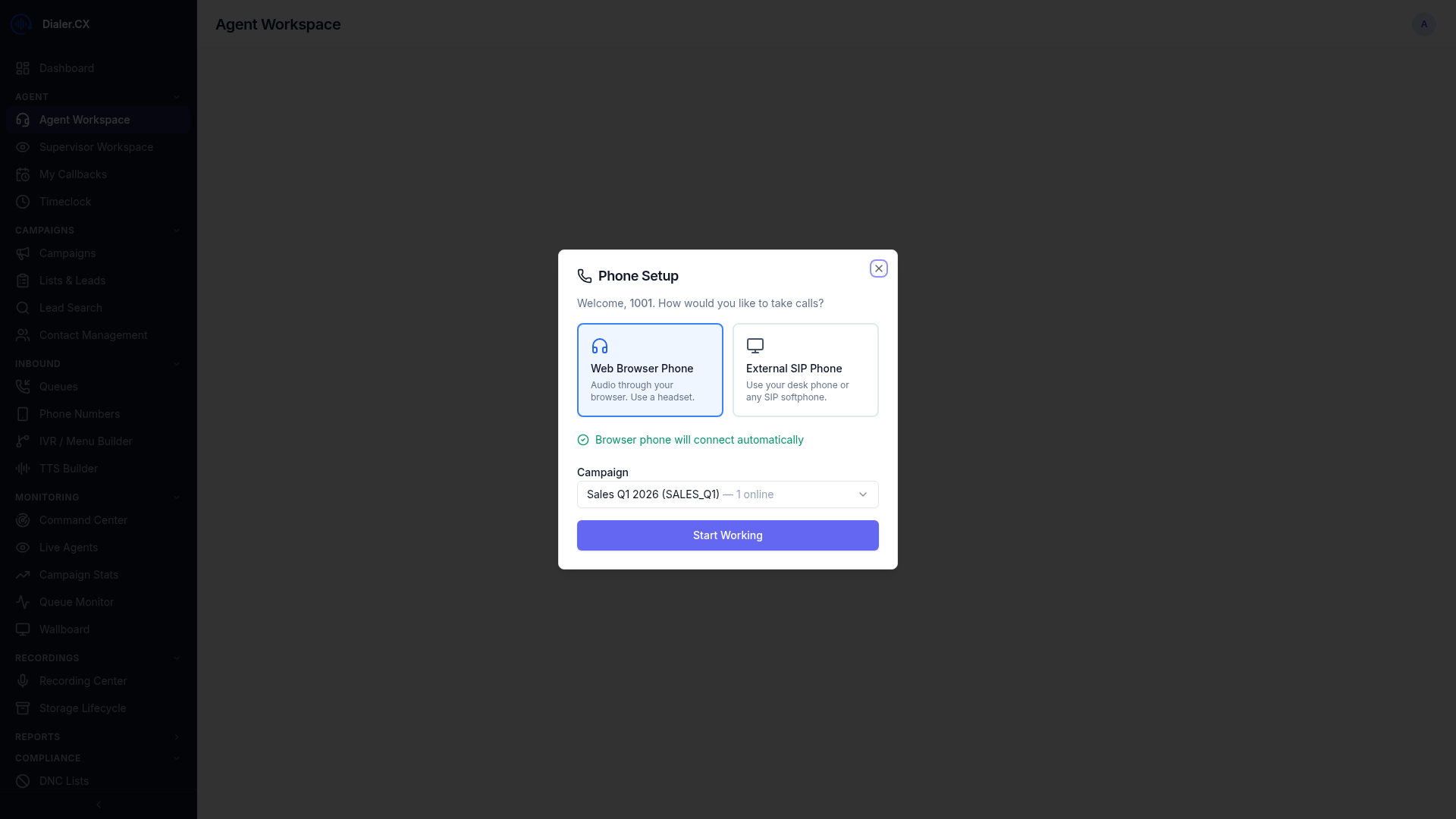
Section titled “Phone Widget”The phone widget appears as a floating element in the bottom-right corner of every page. You can see it in the Agent Workspace screenshot below — look for the compact phone pill at the bottom right.
Collapsed View
Section titled “Collapsed View”A compact pill showing:
- Connection status — green dot for connected, gray for disconnected
- “Secure” badge — confirms your connection is encrypted (TLS + SRTP)
- Active call info — number and duration when on a call
Click the widget to expand it.
Expanded View
Section titled “Expanded View”The full phone interface includes:
- Numeric keypad for manual dialing and DTMF
- Call / Hang Up buttons
- Mute and Hold controls
- Volume slider
- Call History tab — recent inbound and outbound calls
- Settings tab — audio device selection
Connection Security
Section titled “Connection Security”All calls through the browser softphone are encrypted end-to-end between your browser and the PBX server:
| Layer | Protection |
|---|---|
| Signaling | TLS encryption (WSS — WebSocket Secure on port 8089) |
| Voice Media | SRTP encryption (Secure Real-time Transport Protocol) |
Encrypted Connection Badge
Section titled “Encrypted Connection Badge”When connected, the status bar displays a security indicator so you can confirm your calls are protected:
- A green dot indicating you’re Online
- A shield icon with “Secure” label
- Hover tooltip: “Encrypted connection (TLS/SRTP)”
This badge is visible in the workspace header bar at all times. If the badge is missing or shows a warning state, your connection may not be secure — contact your administrator.

Audio Settings
Section titled “Audio Settings”Access audio settings from the phone widget’s Settings tab:
Input Device (Microphone)
Section titled “Input Device (Microphone)”- Select from available microphones
- USB headsets are recommended for consistent quality
- Test your microphone before going live
Output Device (Speaker)
Section titled “Output Device (Speaker)”- Select where you hear the caller’s voice
- Use headset audio output for privacy
Auto-Answer
Section titled “Auto-Answer”If enabled by your administrator, incoming calls can auto-answer after a brief tone.
Phone Modes
Section titled “Phone Modes”Your account may be configured for one of two modes:
| Mode | Description |
|---|---|
| Browser Phone | Calls handled in the browser (default) — you see full phone widget |
| Desk Phone | Calls routed to a physical phone — UI shows “Desk Phone” label |
Contact your administrator to change your phone mode.
Troubleshooting
Section titled “Troubleshooting””Disconnected” Status
Section titled “”Disconnected” Status”- Check your internet connection
- Ensure your browser allows WebSocket connections
- Try refreshing the page
- Check that port 8089 is not blocked by your firewall
No Audio
Section titled “No Audio”- Verify microphone permissions in your browser (click the lock icon in the address bar)
- Check your audio device selection in the Settings tab
- Ensure your headset is plugged in and selected as the input/output device
- Try a different browser
Echo or Feedback
Section titled “Echo or Feedback”- Use a headset instead of built-in speakers and microphone
- Lower your speaker volume
- Ensure only one browser tab has the phone widget active