

Agent Workspace
The Agent Workspace is your primary screen throughout your shift. It combines call controls, lead information, scripts, and dispositions into a single unified interface.
Workspace Layout
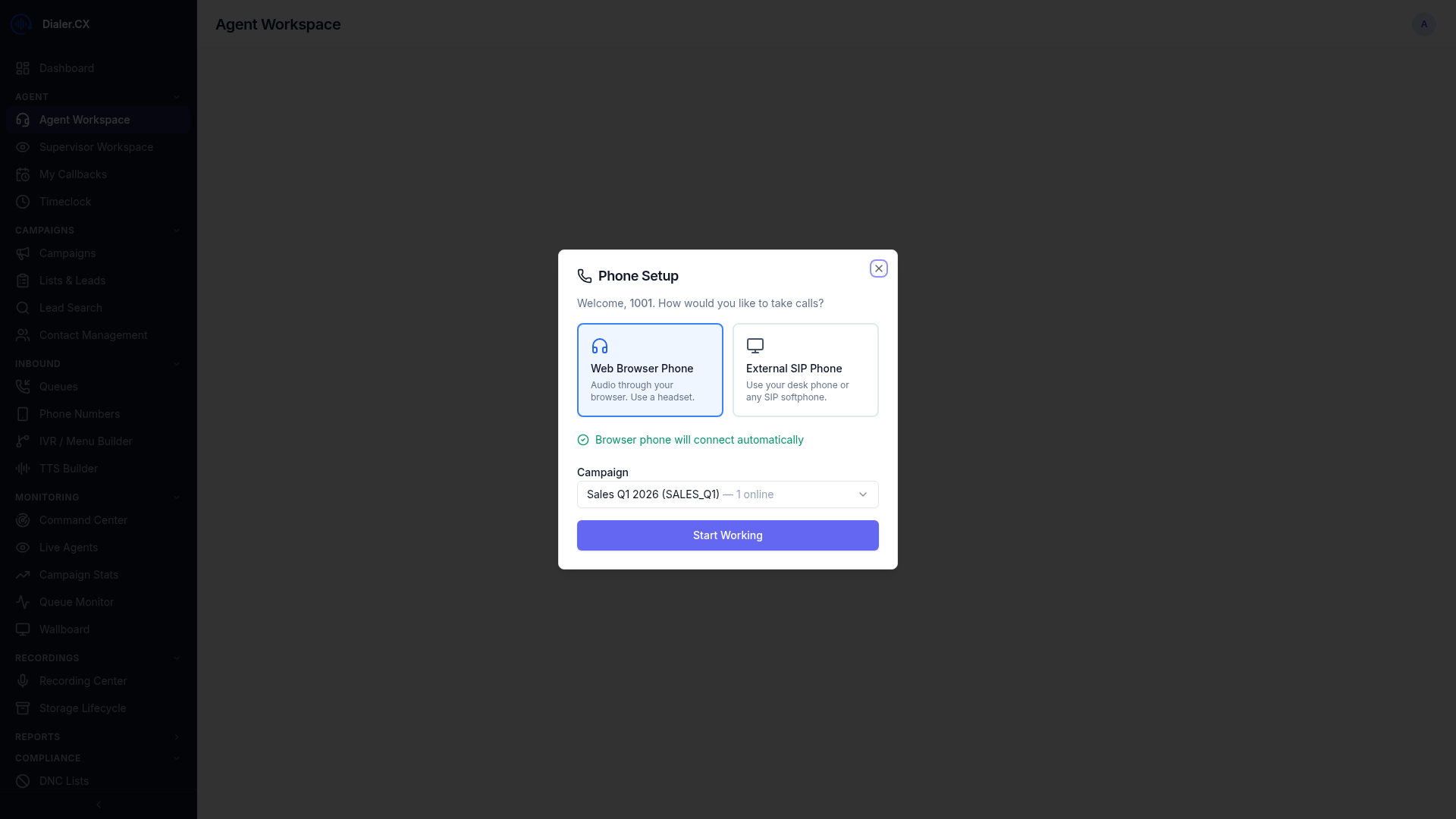
Section titled “Workspace Layout”The workspace adapts based on your current status. The screenshot below shows the complete workspace layout, including the sidebar navigation, status bar, and main content area.
Sidebar Navigation
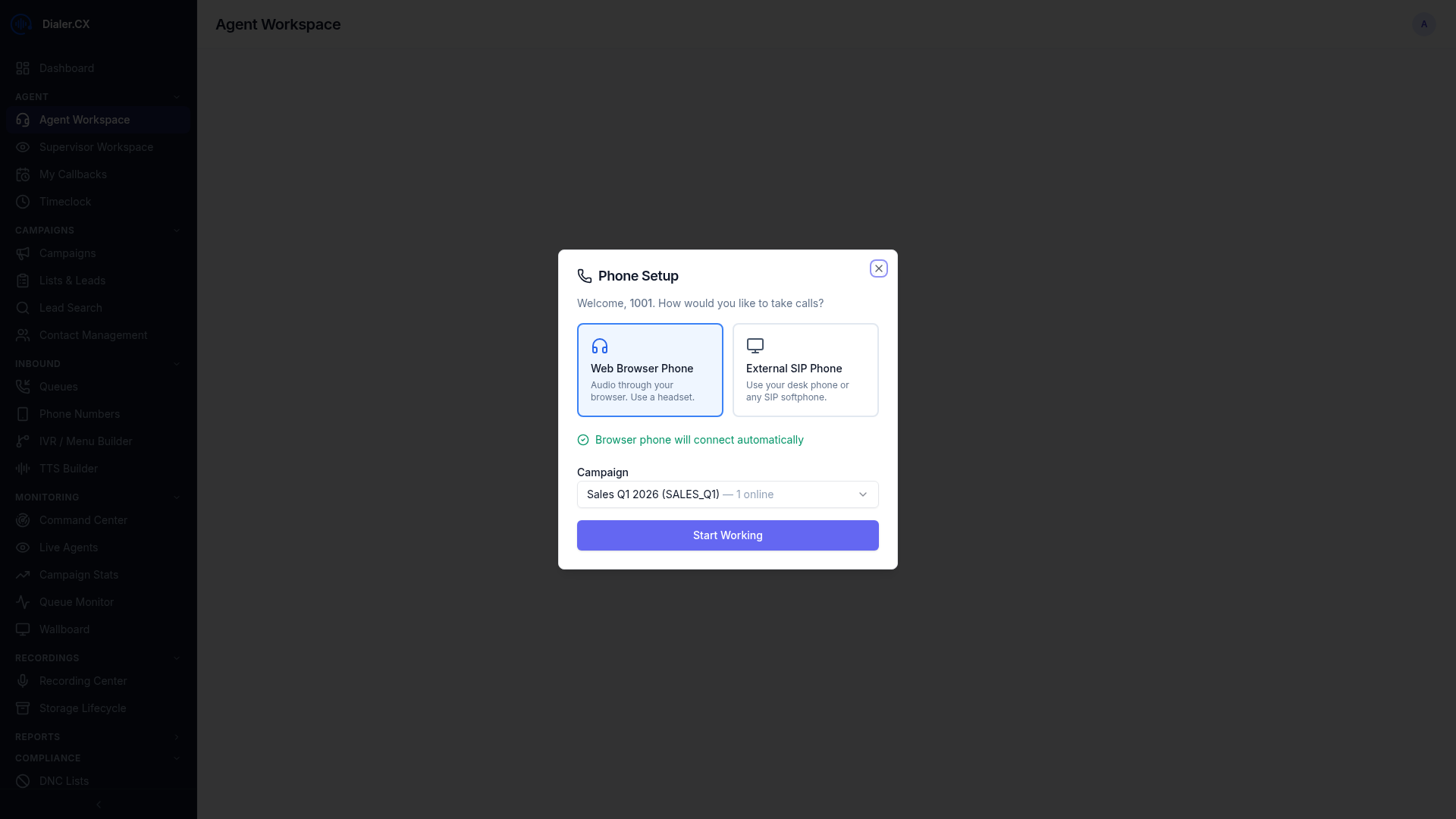
Section titled “Sidebar Navigation”Agents see a focused sidebar with only the pages relevant to their role — Workspace, Callbacks, Timeclock, and Dashboard. The active page is highlighted so you always know where you are.
Status Bar (Always Visible)
Section titled “Status Bar (Always Visible)”A sticky bar at the top shows:
- Your name and assigned campaign
- Status badge — color-coded: READY (green), IN CALL (blue), PAUSED (amber), DISPO (purple)
- Session stats — calls today, talk time, pause time, and login duration (live timer)
- Phone status — connection indicator with “Secure” encrypted badge
- Logout button

Agent States
Section titled “Agent States”| State | What’s Happening | What You See |
|---|---|---|
| READY | Waiting for next call | Idle screen with your stats |
| IN CALL | Active call in progress | Full call panel with lead info and script |
| PAUSED | On break | Pause screen with your selected break code |
| DISPO | Selecting call outcome | Disposition selection panel |
During a Call
Section titled “During a Call”When a call connects, the workspace shows:
- Lead Information Panel — contact name, phone number, address, and all associated data
- Script Panel — your campaign’s talking script with the lead’s details filled in automatically
- Call Controls — hold, mute, transfer, conference, hang up
- Call Timer — live duration counter
- Notes Area — add notes about the call in real time
Call Controls
Section titled “Call Controls”| Control | Action |
|---|---|
| Hang Up | End the current call |
| Hold / Resume | Place the caller on hold with music |
| Mute / Unmute | Toggle your microphone |
| Transfer | Send the call to another agent, queue, or external number |
| Conference | Add a third party to the call |
| DTMF Keypad | Send touch-tone digits during the call |
After a Call
Section titled “After a Call”When a call ends, you enter the DISPO state:
- Select a disposition code that describes the call outcome (Sale, No Answer, Callback, etc.)
- If you select a callback disposition, you can schedule a follow-up date and time
- After selecting a disposition, your status returns to READY
Pause / Break
Section titled “Pause / Break”To take a break:
- Click Pause in your workspace
- Select a reason code (Break, Lunch, Training, Bathroom, etc.)
- Your status shows as PAUSED (reason) — you won’t receive calls
- Click Resume when you’re ready to take calls again
Your pause time is tracked per code and visible in reports.
Manual Dialing
Section titled “Manual Dialing”If your campaign supports manual mode:
- Enter a phone number in the manual dial field
- Click Dial to initiate the call
- The call proceeds as normal with full call controls