

Campaigns
Campaigns are the core organizational unit in Dialer.CX. Each campaign defines the dialing behavior, agent assignments, lead lists, and rules for a calling operation. Everything in the system — agents, leads, pacing, caller ID, recordings — ties back to a campaign.
Creating a Campaign
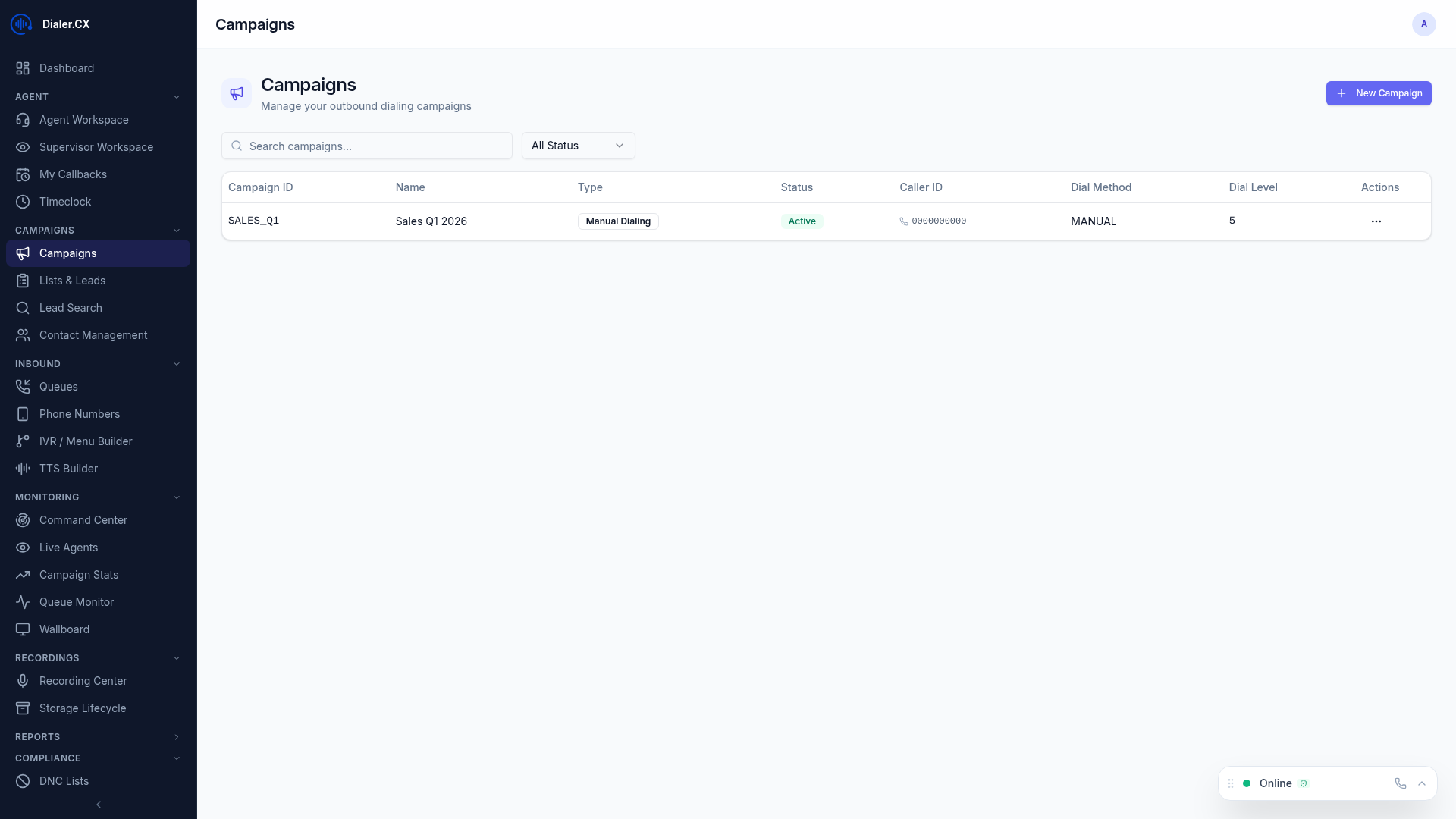
Section titled “Creating a Campaign”Navigate to Campaigns in the sidebar and click New Campaign.
Basic Settings
Section titled “Basic Settings”| Setting | Description |
|---|---|
| Campaign Name | Human-readable name (e.g., “Q1 Sales Outbound”) |
| Campaign ID | Unique identifier |
| Description | Notes about the campaign’s purpose |
| Active | Enable or disable the campaign |
Dial Mode
Section titled “Dial Mode”| Mode | How It Works | Best For |
|---|---|---|
| Predictive | System predicts agent availability and dials ahead | High-volume outbound with many agents |
| Progressive | Dials one call per available agent | Moderate volume, lower drop rates |
| Ratio | Fixed ratio of calls per agent | Controlled pacing |
| Manual | Agents choose when to dial | Complex sales, follow-ups |
| Inbound | Receives incoming calls only | Support and service queues |
Campaign Configuration
Section titled “Campaign Configuration”- Auto-dial level — how aggressively the system dials (predictive/ratio modes)
- Call time rules — when the campaign is allowed to dial
- Max abandon rate — target ceiling for dropped calls
- Agent script — which script agents see during calls
- Disposition codes — available call outcome codes
- Recording settings — percentage of calls to record
- DNC checking — enable Do Not Call list verification
- Caller ID — which number(s) appear on outbound calls
Managing Campaigns
Section titled “Managing Campaigns”The campaign list shows all campaigns with:
- Active/inactive status
- Number of agents currently logged in
- Calls in queue
- Current dial level
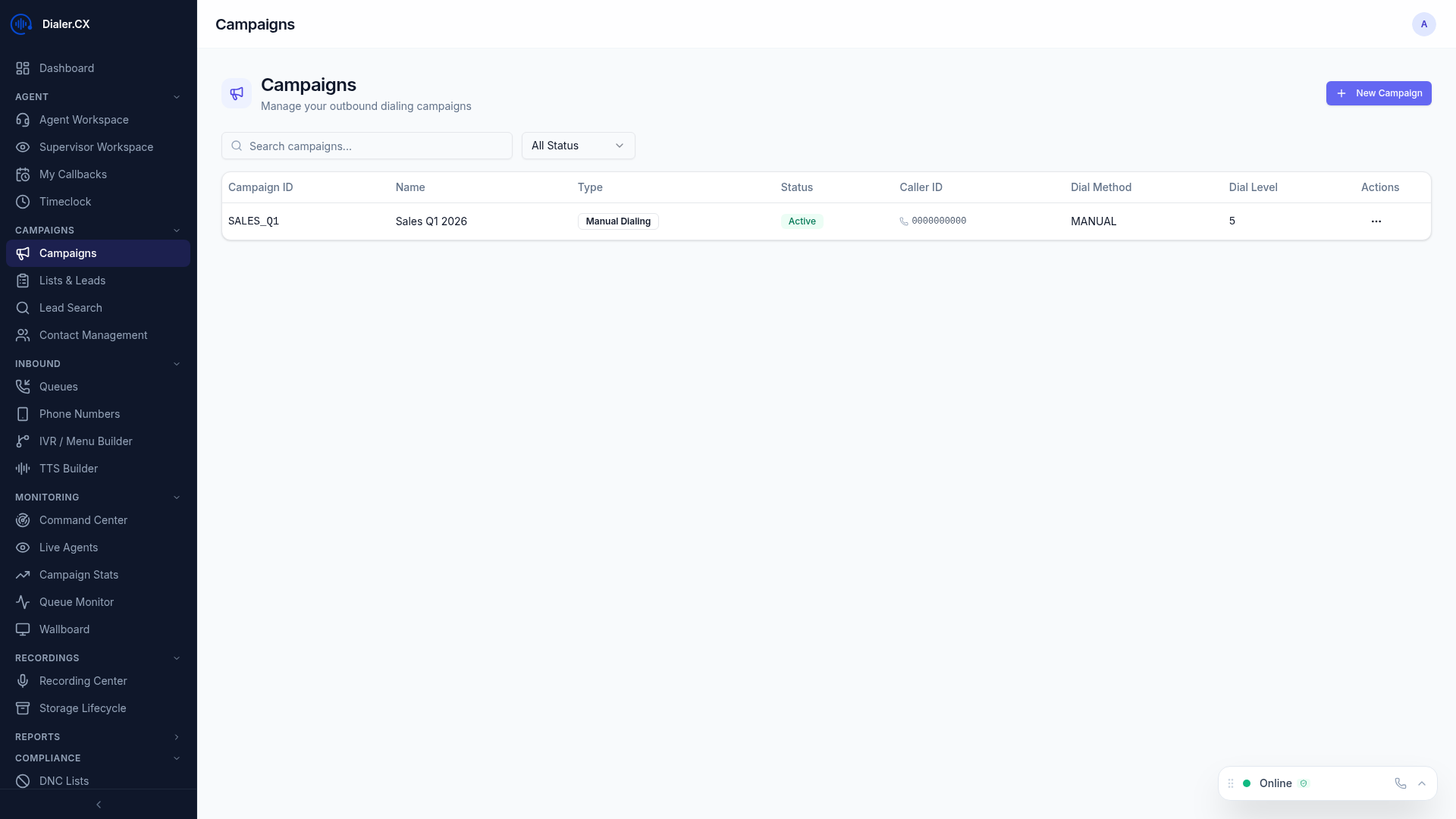
- Quick actions (edit, clone, activate/deactivate)
Campaign Cloning
Section titled “Campaign Cloning”Duplicate an existing campaign to quickly set up a similar operation:
- Click Clone on any campaign
- Modify the settings as needed
- Assign new lead lists
- Activate when ready