

Cloud Storage
Overview
Section titled “Overview”Dialer.CX can automatically archive call recordings to any S3-compatible cloud storage provider. This offloads storage from your local server, reduces costs through compression, and provides durable long-term archival for compliance requirements.
How It Works
Section titled “How It Works”The archival process runs automatically as a background job:
- Calls are recorded locally in high-quality WAV format
- A background job runs every 5 minutes (managed by the scheduled jobs system)
- Recordings are converted from WAV to compressed MP3, saving approximately 90% of storage
- MP3 files are uploaded to your S3 bucket with the original filename preserved
- Upload is verified with a checksum comparison to ensure file integrity
- Local files are purged according to your retention policy after successful upload
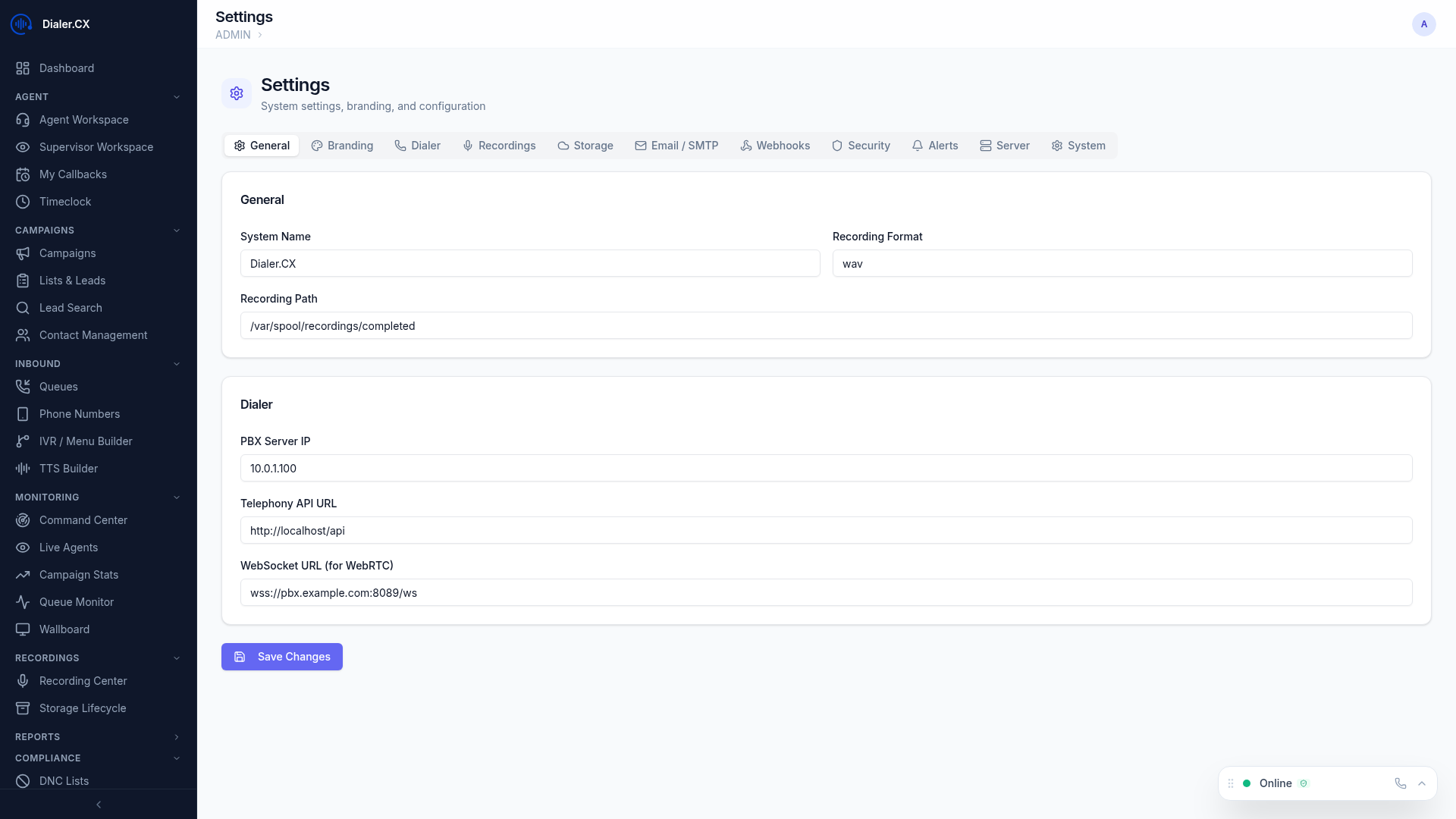
Navigate to Admin > Settings > Recording Storage to configure cloud archival:
- Enter your S3 credentials (Access Key ID and Secret Access Key)
- Select or enter your bucket name (the system can auto-discover existing buckets)
- Choose the region where your bucket is located
- Click Test Connection to verify the credentials have proper access
- Set the local retention policy — how many days to keep files locally after successful upload
- Click Save to activate the archival process
Compatible Providers
Section titled “Compatible Providers”Any S3-compatible storage provider works, including major cloud platforms, self-hosted solutions, and budget storage providers. If your provider offers an S3-compatible API endpoint, it will work with Dialer.CX.
For providers other than the default, enter the custom endpoint URL in the configuration form.
Credentials
Section titled “Credentials”- Access Key ID and Secret Key are stored encrypted in the database
- Credentials are only decrypted in memory when needed for upload operations
- Use a dedicated service account with minimal permissions (put, get, list on a single bucket)
Monitoring
Section titled “Monitoring”Check upload status at Admin > Scheduled Jobs:
- Last run time and result for the recording upload job
- Number of recordings uploaded per batch (typically processes all pending files every 5 minutes)
- Error details for any failed uploads, including the specific file and error message
- Queue depth showing how many recordings are waiting to be uploaded
Storage Savings
Section titled “Storage Savings”The WAV-to-MP3 conversion provides significant cost savings:
| Format | Size (1-hour call) | Relative Cost |
|---|---|---|
| WAV (original) | ~115 MB | Baseline |
| MP3 (archived) | ~14 MB | ~88% less |
That is an 88% reduction in storage costs, and the savings scale linearly with call volume.
Troubleshooting
Section titled “Troubleshooting”| Issue | Cause | Solution |
|---|---|---|
| Test connection fails | Invalid credentials or bucket | Verify Access Key, Secret Key, bucket name, and region |
| Uploads stuck at 0 | Background job not running | Check Admin > Scheduled Jobs for the upload job status |
| Permission denied on upload | Insufficient permissions | Add write permission to the storage service account |
| Slow uploads | Large backlog or limited bandwidth | Uploads process in batches; the queue will clear over time |