

Recording Center
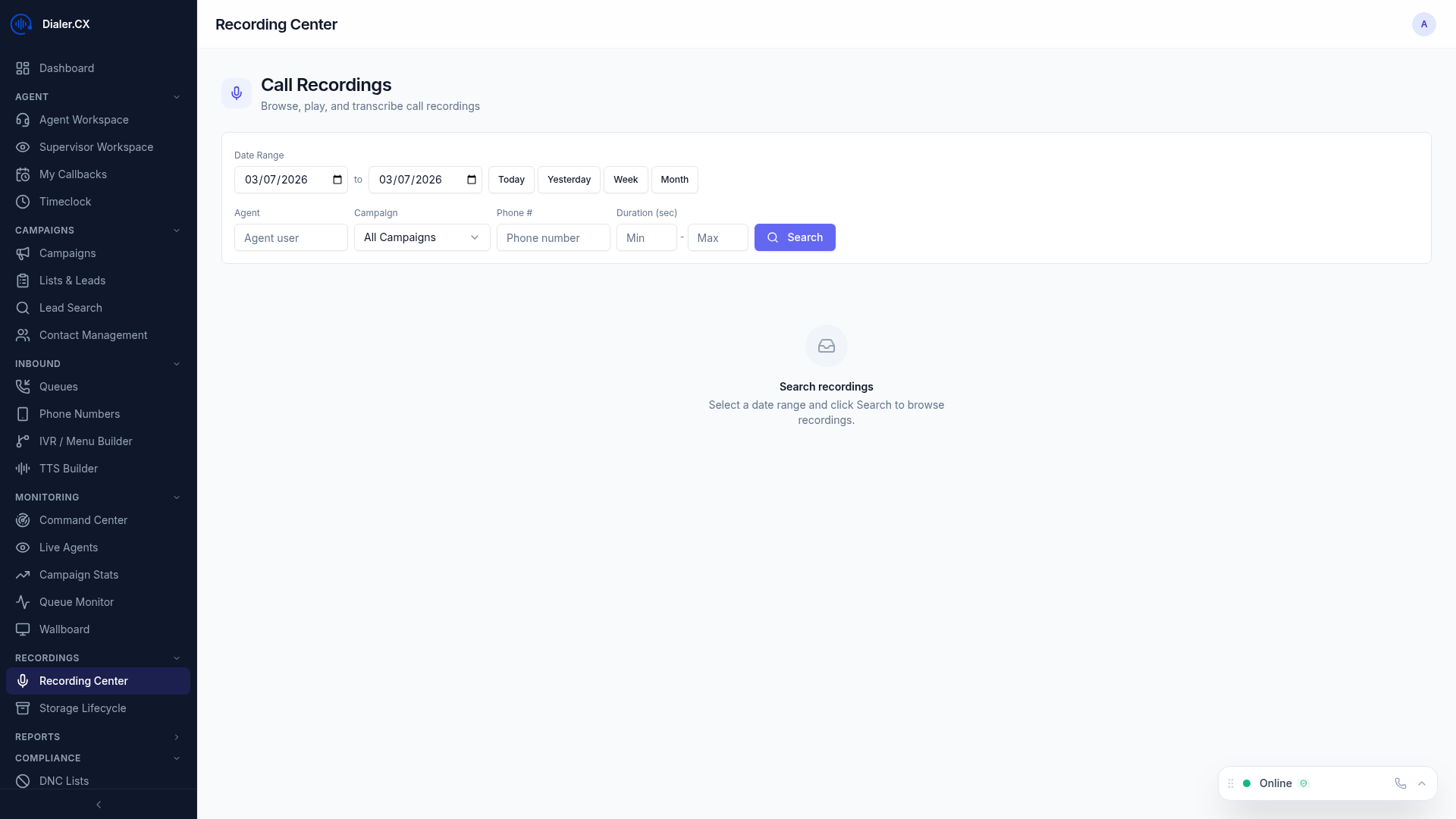
The Recording Center is your hub for reviewing call recordings, reading AI transcriptions, and managing recording metadata. Every call recording in the system is accessible from this single interface with powerful search, filtering, and AI-powered analysis tools.
Finding Recordings
Section titled “Finding Recordings”
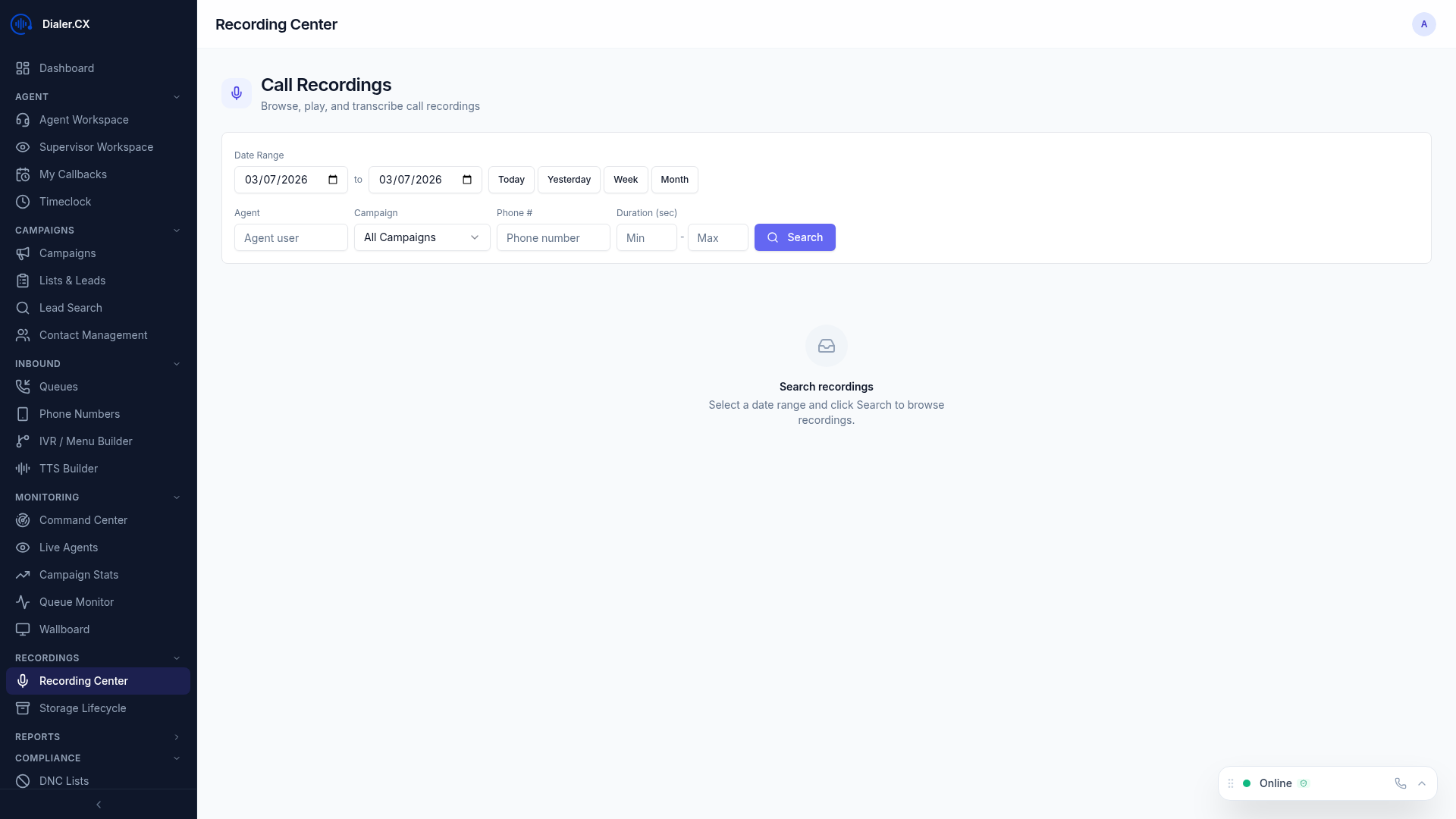
Use the search and filter controls to find recordings:
| Filter | Description |
|---|---|
| Date Range | Start and end date |
| Agent | Filter by agent name |
| Campaign | Filter by campaign |
| Phone Number | Search by lead’s phone number |
| Disposition | Filter by call outcome |
| Duration | Minimum/maximum call length |
Playback
Section titled “Playback”Click any recording to open the player:
- Waveform visualization — visual representation of the audio
- Play / Pause — standard playback controls
- Seek — click anywhere on the waveform to jump to that point
- Speed control — play at 0.5x, 1x, 1.5x, or 2x speed
- Volume control — adjust playback volume
- Download — save the recording file
AI Transcription
Section titled “AI Transcription”If AI transcription is enabled, recordings include automatic speech-to-text:
- Full transcript displayed alongside the audio player
- Speaker identification — agent and customer speech labeled separately
- Synchronized playback — transcript highlights as the audio plays
- Searchable text — search within transcript content
Transcription is powered by your configured AI provider. Configure the provider in AI Settings.
AI Analysis
Section titled “AI Analysis”AI-powered call analysis provides deeper insights:
- Call summary — AI-generated synopsis of the conversation
- Sentiment analysis — customer and agent sentiment scoring
- Key moments — objections, commitments, escalation points identified
- Compliance check — script adherence and required disclosure detection
Tags & Comments
Section titled “Tags & Comments”- Add labels to recordings (Training, Escalation, Sale, Complaint, QC Review)
- Filter recordings by tag
- Multiple tags per recording
Timestamped Comments
Section titled “Timestamped Comments”- Add comments tied to specific moments in the recording
- Click a comment to jump to that timestamp
- Multiple users can comment — useful for coaching discussions
Cloud Storage
Section titled “Cloud Storage”Recordings can be automatically backed up to cloud storage:
- Automatic conversion from high-quality WAV to compressed MP3
- Configurable retention policies
- Secure access with time-limited signed tokens
See Cloud Storage integration for setup details.